
Темы
- Изменение пароля через профиль пользователя
- Через ссылку восстановления
- Через командную строку MySQL
- Через phpMyAdmin
- Через FTP
- Через WP CLI
- Использование сценария аварийного сброса пароля
- Дополнительная информация
В WordPress есть несколько способов сбросить пароль. (Обычно самый простой способ сбросить его — воспользоваться ссылкой «Забыли пароль?» На главной странице входа в ваш блог или веб-сайт.) Однако бывают случаи (особенно, если ваша электронная почта работает некорректно), когда вам, возможно, придется предпринять другие шаги для сброса пароля.
Вот список различных способов сбросить пароль. Используемый вами метод зависит от типа доступа к вашему веб-сайту.
Изменение пароля через профиль пользователя
Изменить пароль в WordPress вы можете через настройки профиля пользователя. После того как вы выполнили вход в панель администрирования WordPress, зайдите в меню Пользователи → Ваш профиль и найдите раздел Новый пароль. Здесь вы можете задать новый пароль для текущего пользователя.

Если вы являетесь администратором сайта, то вы можете так же сменить пароль для другого пользователя, выбрав его в меню Пользователи → Все пользователи. Обратите внимание на шкалу надёжности, которая поможет вам выбрать более длинный и надёжный пароль.
Данный метод является самым простым и удобным, но к сожалению не применимым в тех случаях, когда вы не можете выполнить вход в панель управления WordPress. К счастью есть и другие варианты, не требующие входа.
Наверх ↑
Через ссылку восстановления
Если вы забыли пароль от вашего сайта на WordPress, то вы можете восстановить его по электронной почте. В форме входа (по адресу /wp-login.php) вы можете щёлкнуть ссылку «Забыли пароль» и ввести адрес электронной почты вашего пользователя или имя пользователя.
В течение нескольких минут на вашу электронную почту придёт письмо со специальной ссылкой для восстановления пароля. При переходе по этой ссылке, вам будет представлена форма, где вы сможете ввести новый пароль для вашего пользователя. Так же как и в первом методе, вам будет представлен индикатор надёжности пароля.

Если у вас нет доступа к электронной почте пользователя или если по какой-либо причине не работает отправка электронной почты с вашего сервера, то вам придётся воспользоваться другим методом.
Наверх ↑
Через командную строку MySQL
Если ваш хостинг провайдер не предоставляет пакет phpMyAdmin, то вы можете попытаться подключиться к вашей базе данных MySQL используя клиент MySQL через командную строку. Этот способ является более продвинутым и не рекомендуется новичкам.
Подключившись к серверу через SSH, выполните вход на сервер MySQL через командную строку, заменив значения username и password (а так же localhost, если вы подключаетесь к удалённой базе данных):
mysql -uusername -ppassword -hlocalhost
Если вам удалось подключиться, то так же как и в предыдущем способе, вам нужно найти вашу базу данных WordPress. Вы можете это сделать используя команды SHOW DATABASES:
mysql> SHOW DATABASES;
+--------------------+
| Database           |
+--------------------+
| information_schema |
| wordpress          |
+--------------------+
Командой SHOW TABLES можно получить список всех таблиц определённой базы данных:
mysql> SHOW TABLES IN wordpress;
+------------------------------+
| Tables_in_wordpress          |
+------------------------------+
| wp_commentmeta               |
| wp_comments                  |
| wp_links                     |
| wp_options                   |
...
После того, как вы нашли интересующую вас базу данных, выберите её командой USE, и выведите список всех пользователей:
mysql> USE wordpress;
Database changed
mysql> SELECT user_login FROM wp_users;
+---------------+
| user_login    |
+---------------+
| admin         |
| user          |
...
Определив имя пользователя чей пароль вы хотите изменить, используйте команду UPDATE для смены пароля. Так же как и с phpMyAdmin, здесь необходимо воспользоваться функцией MD5 при вводе нового пароля:
mysql> UPDATE wp_users SET user_pass = MD5('newpassword') WHERE user_login = 'user';
Query OK, 1 row affected (0.00 sec)
Rows matched: 1  Changed: 1  Warnings: 0
После выполнения данного запроса вы сможете выполнить вход в панель администрирования WordPress, используя ваш новый пароль.
При работе с запросами MySQL стоит быть предельно осторожным. Забыв например часть «WHERE…» в предыдущем запросе, вы измените пароли для всех пользователей и отменить это действие нельзя. Мы рекомендуем сделать резервную копию базы данных прежде чем начинать работу с консолью MySQL.
Наверх ↑
Через phpMyAdmin
Большинство хостинг-провайдеров предоставляют доступ к phpMyAdmin — это утилита для работы с базами данных MySQL, где WordPress хранит всю информацию о своих пользователях. Если вы не можете зайти в phpMyAdmin, советуем обратиться за помощью к вашему хостинг-провайдеру, или же попробовать другой способ смены пароля.
После того как вы выполнили вход в phpMyAdmin, найдите базу данных вашего сайта и выберите её в панели слева. Её легко распознать по наличию таблиц wp_posts, wp_postmeta, wp_comments, wp_commentmeta, wp_users, wp_usermeta и т.д. Учтите, что префикс может отличаться.
Здесь нас интересует таблица wp_users. После того как вы её откроете, вы увидите список всех пользователей вашего сайта. Выберите того пользователя, чей пароль вы хотите изменить и щёлкните кнопку «редактировать». Вам будет представлена форма редактирования пользователя.

Поле user_pass отвечает за пароль выбранного пользователя. Для смены пароля очень важно выбрать функцию MD5 из выпадающего списка для поля user_pass, и затем ввести новый пароль в значении поля.
После сохранения изменений вы сможете выполнить вход в панель администрирования WordPress используя ваш новый пароль. Учтите, что изменив пароль в phpMyAdmin, вы не увидите его в открытом виде в таблице wp_users, поскольку WordPress хранит все пароли в зашифрованом виде.
Наверх ↑
Через FTP
Когда другие методы не являются доступными, пароль в WordPress можно изменить с помощью простого PHP файла. Для данного способа вам понадобится доступ к FTP серверу, где хранится ваш сайт. Создайте новый PHP файл с произвольным именем (например password-recovery.php) и следующим содержанием:
<?php
add_action( 'init', 'my_password_recovery' );
function my_password_recovery() {
    $user = get_user_by( 'login', 'my-username' );
    wp_set_password( 'my-new-password', $user->ID );
}
Данный код находит в базе данных пользователя с заданным именем пользователя, и изменяет его пароль. Не забудьте заменить значения my-username и my-new-password на ваше имя пользователя и пароль.
После этого откройте ваш FTP клиент и подключитесь к серверу вашего сайта. В директории где установлен WordPress найдите папку wp-content и зайдите в неё. Найдите директорию mu-plugins (не путайте с директорией plugins). Если директория mu-plugins не существует — создайте её. Загрузите в директорию mu-plugins созданный вами PHP файл.
Конечный путь до файла должен выглядеть примерно так: wordpress/wp-content/mu-plugins/password-recovery.php
После того как вы загрузили ваш файл, вы сможете выполнить вход в административную панель WordPress используя пароль, который вы указали в вашем PHP файле.
И наконец, не забудьте снова зайти в вашу директорию mu-plugins и удалить созданный вами файл password-recovery.php. Если вы этого не сделаете, WordPress будет изменять пароль при каждом посещении вашего сайта, что существенно снизит скорость его работы.
Наверх ↑
Через WP CLI
WP CLI — это инструмент командной строки для управления вашей установкой WordPress.
- Перейдите в корневой каталог wordpress и введите
$ wp user list
- Затем обновите пользователя
$ wp user update 1 --user_pass=$UP3RstrongP4$w0rd
заменив «1» на идентификатор пользователя, которого вы хотите обновить.
Подробнее о wp cli
Наверх ↑
Использование сценария аварийного сброса пароля
Если другие перечисленные выше решения не работают, попробуйте сценарий аварийного сброса пароля. Обратите внимание, что это не плагин, это скрипт PHP.
Имейте ввиду, что:
- Сценарий экстренного сброса пароля требует, чтобы вы знали имя пользователя администратора.
- Он обновляет пароль администратора и отправляет электронное письмо на адрес электронной почты администратора.
- Даже если вы не получите письмо, пароль все равно будет изменен.
- Вам не нужно входить в систему, чтобы использовать его. (В конце концов, если бы вы могли войти в систему, сценарий вам не понадобился бы.)
- Поместите скрипт в корень вашей установки WordPress. Не загружайте его в каталог плагинов WordPress.
- По соображениям безопасности не забудьте удалить сценарий, когда закончите.
Инструкция по применению:
- Скопируйте аварийный сценарий из Скрипт аварийного пароля и поместите в файл с именем emergency.php в корне вашей установки WordPress (тот же каталог, который содержит wp-config.php).
- В вашем браузере откройте http://example.com/emergency.php.
- В соответствии с инструкциями введите имя пользователя администратора (обычно admin) и новый пароль, затем нажмите Обновить настройки. Появится сообщение об изменении пароля. Администратору блога будет отправлено письмо с измененным паролем.
- По завершении удалите emergency.php со своего сервера. Не оставляйте его на своем сервере, так как кто-то другой может использовать его для изменения вашего пароля.
Наверх ↑
Дополнительная информация
- Вот еще один сценарий сброса пароля который можно использовать, не зная имени пользователя или электронной почты.
В WordPress можно восстанавливать и изменять пароль пользователя, если у вас есть доступ к email пользователя или вы уже авторизованы. А как поменять (установить пароль) любому пользователю если вы не знаете пароль администратора? Ниже рассмотрим разные варианты изменения пароля для разных ситуаций.
Главное помните — всегда нужно указывать надежный пароль!
Узнать пароль пользователя WordPress невозможно, потому что пароли хранятся в БД в закодированном виде (в виде хэша) и единственный способ узнать пароль по хэшу — это его угадать. Такой подбор паролей называется Брут-форс.
Пароль хранится в базе данных в поле user_pass таблицы wp_users.
Авторизация — PHP
Чтобы не изменять пароль пользователя, но при этом попасть в админку, можно использовать функцию wp_set_auth_cookie().
Код ниже показывает как авторизоваться в качестве администратора не меняя его пароль.
Вставьте код в файл темы functions.php. Затем зайдите на любую страницу сайта и допишите в конец URL ?login_as_admin. После этого вы автоматически будите авторизованы как администратор.
if( isset( $_GET['login_as_admin'] ) ){

	add_action( 'init', function(){
		$users = get_users( [ 'role' => 'administrator' ] );
		wp_set_auth_cookie( $users[0]->ID );
	} );
}
После использования этого кода, его обязательно нужно удалить!
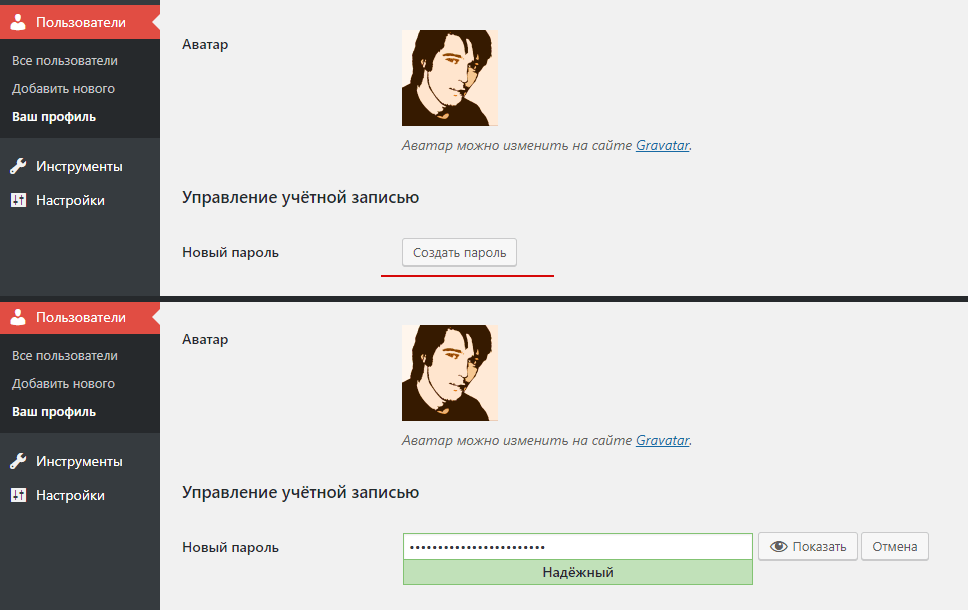
Смена пароля — профиль в админке
Если вы авторизованы, то пароль можно изменить на странице профиля Пользователи → Ваш профиль. Если вы при этом еще и администратор, то пароль можно изменить любому пользователю, перейдя в редактирование пользователя со страницы Пользователи → Все пользователи.
Смена пароля — email (восстановление пароля)
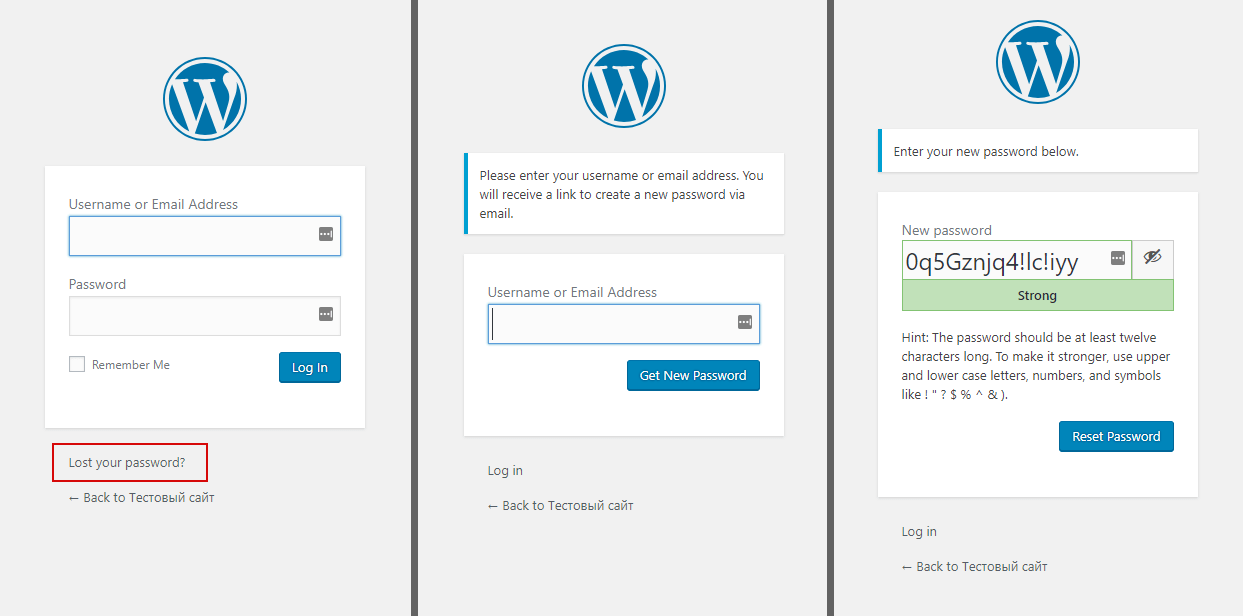
Если вы забыли пароль, но у вас есть доступ к email пользователя, то пароль можно восстановить. Для этого нужно:
- Перейти на страницу Входа:
/wp-login.php. - Кликнуть по ссылке «Забыли пароль?».
- Ввести email или имя пользователя, пароль для которого нужно восстановить.
- Перейти по ссылке на восстановление пароля, полученной на email (если указали имя пользователя, то нужно проверить email соответствующий имени пользователя).
- Ввести новый пароль в форме на которую вы попали кликнув по ссылке в письме.
- Войти на сайт используя новый пароль.
Смена пароля — phpMyAdmin
Почти все хостинг провайдеры предоставляют доступ к phpMyAdmin — панель управления базой данных.
Там установить пароль любого пользователя очень просто. Для этого нужно зайти в таблицу wp_users и нажать «редактировать» (иконку карандаша) рядом с пользователем, пароль которого хотите поменять. В результате вы увидите такую форму:

Измените хэш код в поле user_pass на новый пароль. И обязательно укажите MD5 для установленного значения (так введенный текстовый пароль будет захэширован и WP сможет его потом «распознать»).
Заметка: при первой авторизации MD5 хэш автоматически будет изменен на более надежный хэш, который используется в вашей версии WordPress.
Смена пароля — MySQL
Для установки нового пароля можно использовать SQL запрос.
Пример ниже, показывает как изменить пароль администратора WordPress, зная его логин. Тут новый пароль будет — newpass, а логин администратора — admin:
UPDATE wp_users SET user_pass = MD5('newpass') WHERE user_login = 'admin'
Если вдруг вы забыли логин, но точно помните, что вы были первым юзером на блоге, а значит ваш ID равен 1, то можно сбросить пароль по ID — WHERE ID = 1:
UPDATE wp_users SET user_pass = MD5('newpass') WHERE ID = 1;
Или можно изменить пароль зная email юзера:
UPDATE wp_users SET user_pass = MD5('newpass') WHERE user_email = 'adminko@gmail.com';
MD5(‘newpass’) = e6053eb8d35e02ae40beeeacef203c1a
Пример запуска MySQL запроса из консоли
Для начала нужно зайти в консоль и подключиться к БД, такой командой:
mysql -u USERNAME -pPASSWORD -h HOST_NAME_OR_IP DATABASE_NAME
или без указания хоста (если вы работает в консоли из среды самого хостинга)
mysql -u USERNAME -pPASSWORD DATABASE_NAME
Далее, нужно запустить вышеупомянутый запрос, так:
mysql> UPDATE wp_users SET user_pass = MD5('newpass') WHERE user_login = 'admin';
Чтобы узнать название таблиц в базе данных my_database, используйте команду:
mysql> SHOW TABLES IN my_database;

+---------------------------+
| Tables_in_my_database     |
+---------------------------+
| wp_commentmeta            |
| wp_comments               |
| wp_options                |
| wp_postmeta               |
| wp_posts                  |
| wp_term_relationships     |
| wp_term_taxonomy          |
| wp_termmeta               |
| wp_terms                  |
| wp_usermeta               |
| wp_users                  |
+---------------------------+
Чтобы получить список логинов пользователей из таблицы юзеров, используйте команду:
mysql> SELECT user_login FROM wp_users;

+----------------+
| user_login     |
+----------------+
| abalak         |
| AbamFaw        |
| admin          |
+----------------+
Смена пароля — PHP
Новый пароль можно установить PHP кодом, с помощью функции wp_set_password().
Вставьте следующий код в файл темы functions.php. Затем зайдите на любую страницу сайта и допишите в конец URL ?init_new_pass_set=anton.
В результате пароль пользователя anton будет изменен на newpass.
if( isset( $_GET['init_new_pass_set'] ) && $login = $_GET['init_new_pass_set'] ){
	add_action( 'init', function() use ( $login ){
		wp_set_password( 'newpass', get_user_by( 'login', $login )->ID );
		wp_die( "Пароль юзера `$login` изменен" );
	} );
}
После использования этого кода, его обязательно нужно удалить!
Смена пароля — WP-CLI
Установить пароль пользователя можно командой wp user update.
Этот пример показывает как для пользователя с логином USERNAME установить пароль PASSWORD:
wp user update USERNAME --user_pass="PASSWORD"
Получить список пользователей (чтобы узнать логин) можно командой wp user list:
wp user list

+----+---------------+--------------+---------------------+---------------------+---------------+
| ID | user_login    | display_name | user_email          | user_registered     | roles         |
+----+---------------+--------------+---------------------+---------------------+---------------+
| 4  | aleksej-nnn   | Alex         | alsey119@yandex.ru  | 2018-04-24 21:04:24 | administrator |
| 7  | denis         | Denis        | deis@denis.pro      | 2018-06-06 23:30:54 | subscriber    |
| 9  | shk_user      | shk_user     | sheer@qsologies.com | 2018-08-11 13:27:09 | subscriber    |
| 8  | vladlu        | vladlu       | spata@famail.com    | 2018-03-26 00:11:48 | editor        |
+----+---------------+--------------+---------------------+---------------------+---------------+
Сброс паролей — WP-CLI
Можно установить авто-сгенерированные пароли для указанных пользователей, для этого есть команда wp user reset-password.
Этот пример показывает как сбросить пароль для двух пользователей и отправить им сообщение о том что пароль был изменен.
wp user reset-password admin editor
	Reset password for admin.
	Reset password for editor.
	Success: Passwords reset.
Пользователь в результате получит такое сообщение на почту:

Как сменить пароль администратора в WordPress
Когда возникает необходимость замены пароля WordPress? Вы можете забыть собственный пароль для входа в админ-панель или просто захотите поменять старую кодовую фразу на новую в целях безопасности. Обновление пароля WordPress доступно несколькими методами, выбирайте наиболее подходящий способ для вашей ситуации.
В WordPress существует несколько способов установить новый пароль. В обычных обстоятельствах это можно сделать напрямую через интерфейс админки или на странице входа в нее. Кодовую фразу также можно обновить в базе данных, используя панель phpMyAdmin. Выбор метода для восстановления пароля WordPress зависит от того, какой тип доступа к сайту у вас имеется.
Как восстановить пароля от админки на странице входа
Если вы забыли пароль и не можете войти в админ-панель, учетные данные можно восстановить на странице входа. WordPress оснащен встроенным механизмом восстановления кодовой фразы, который использует электронную почту, указанную вами при регистрации сайта.
- На странице входа в админ-панель WordPress по адресу имя-сайта/wp-login.php найдите ссылку «Забыли пароль?» и нажмите на нее.
- Система попросит ввести логин или адрес электронной почты. Наберите любой из этих идентификаторов в предложенное поле и нажмите кнопку «Получить новый пароль».
- Дождитесь электронного письма на адрес почты, который зарегистрирован в админке WordPress. Откройте письмо и перейдите по предложенной ссылке, чтобы создать новый пароль.

Как поменять пароль в админ-панели ВордПресс
Если вы находитесь внутри админки WordPress и хотите поменять кодовую фразу для входа в нее, это можно сделать не выходя из админ-панели. Администратор имеет право изменить пароль не только для своей учетной записи, но и для всех зарегистрированных пользователей.
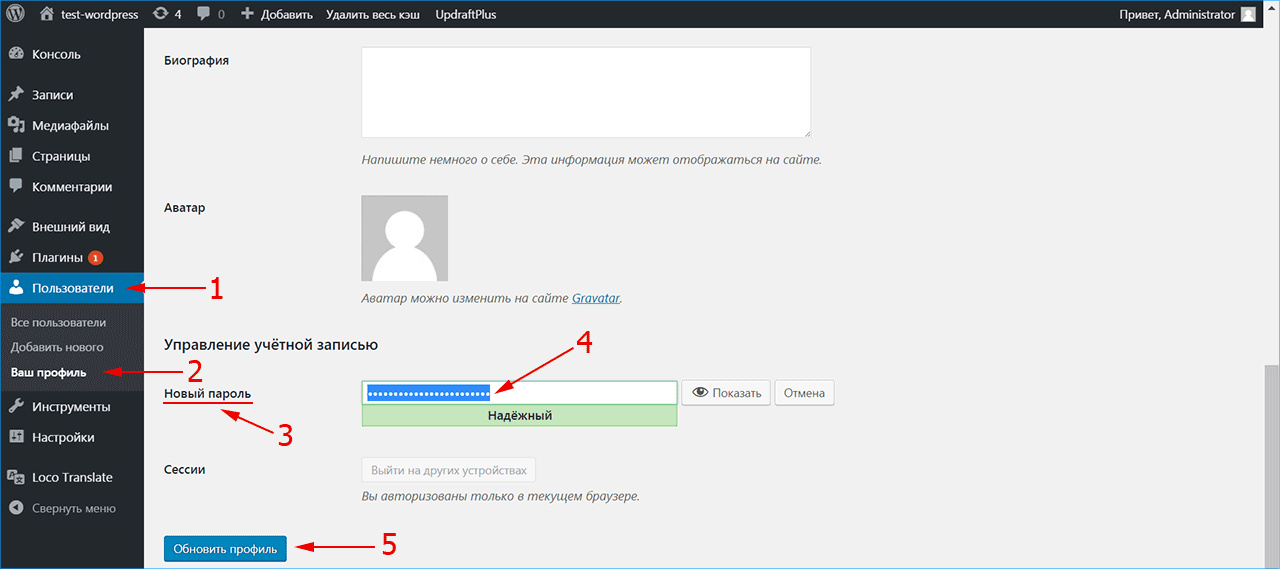
- В меню слева выберите пункт «Пользователи»
- Перейдите на вкладку «Ваш профиль».
- Прокрутите страницу вниз до поля «Новый пароль» и нажмите кнопку «Создать пароль».
- Вместо кнопки появится поле для ввода с автоматически сгенерированным паролем . Если символы не видны, их можно увидеть при нажатии кнопки «Показать». В поле введите собственный набор символов или оставьте предложенный системой вариант. Если он надежный, появится шкала зеленого цвета. При слабом пароле будет показано предупреждение и дополнительное поле для его подтверждения.
- Обновите профиль нажатием соответствующей кнопки, чтобы изменения вступили в силу.
Изменение и сброс пароля в PhpMyAdmin — если забыли пароль и email
Когда нет доступа к электронной почте и админпанели, для входа в админ-панель WordPress потребуется предпринять шаги для сброса пароля через интерфейс phpMyAdmin. Зайдите в панель phpMyAdmin с использованием учетных данных, предоставленных вам хостинг-провайдером.
- В списке баз данных укажите базу нужного сайта.
- Найдите в ней таблицу записей wp_users.
- В открывшемся окне будут показаны учетные записи всех пользователей сайта. Учтите, что применить пароль, который указан на этой странице в поле user_pass, не получится, поскольку эта информация зашифрована.
- Выберите нужного пользователя.
- Нажмите «Изменить».
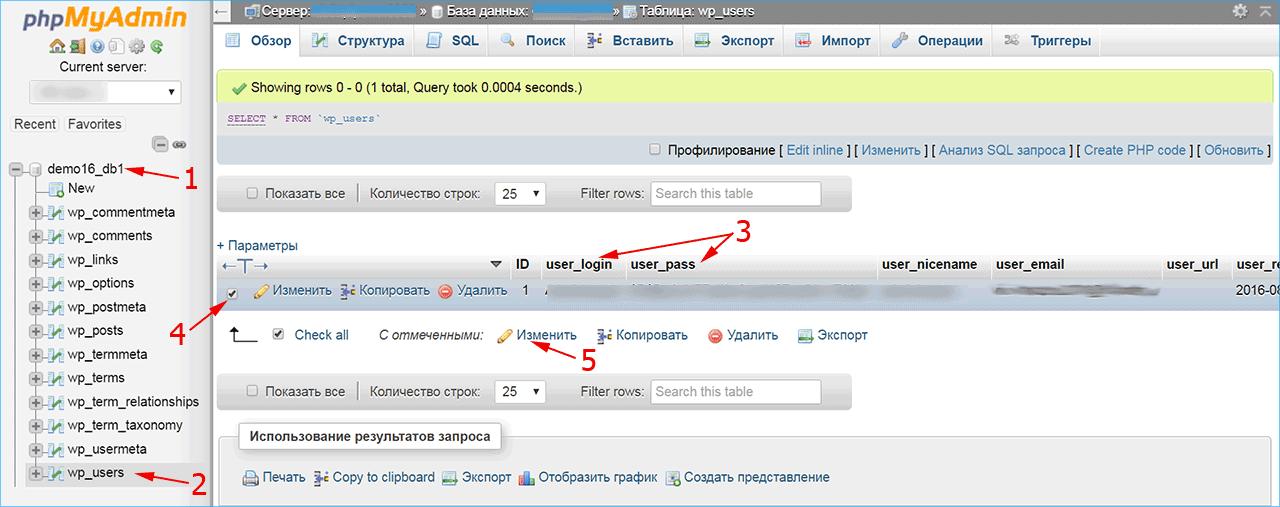
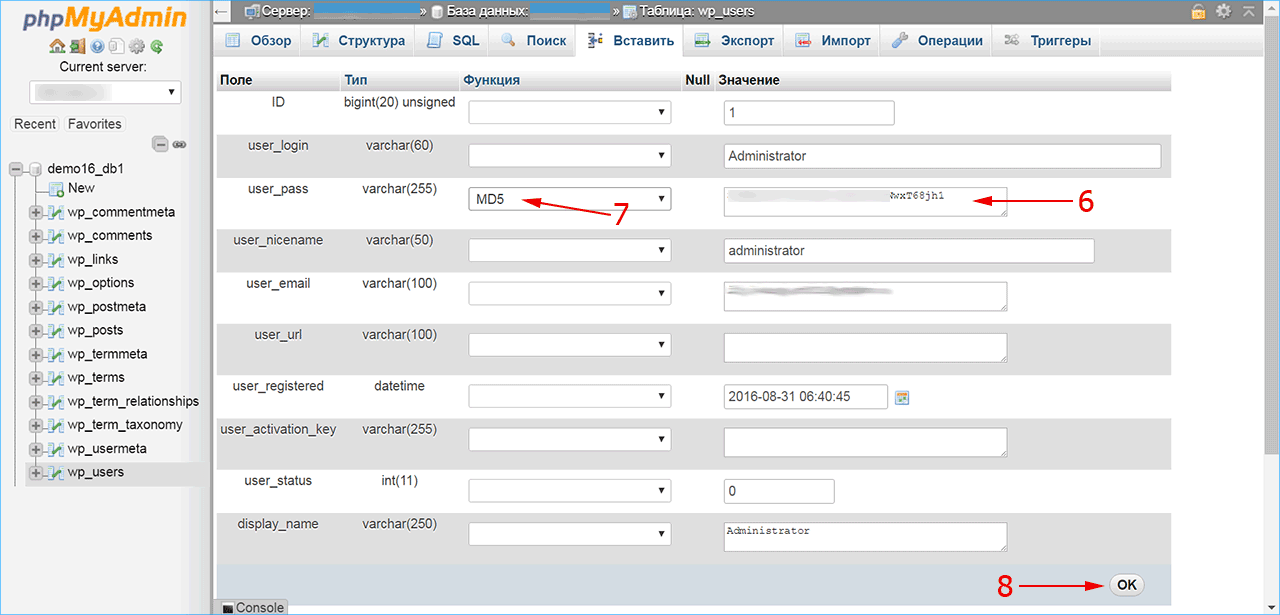
В открывшейся вкладке найдите поле user_pass и введите в него новый набор символов (6). В соседнем поле обязательно установите опцию MD5 (7) для шифрования пароля и подтвердите изменения (8). Теперь с новым установленным паролем вы сможете зайти в админ-панель WordPress.
Хранение паролей в WordPress
Устанавливайте надежный пароль для WordPress, чтобы не потерять контроль над сайтом, если возникнет риск его взлома. Для максимальной безопасности при создании кодовой фразы рекомендуется:
- Включать в нее прописные и строчные буквы, цифры и символы.
- Избегать осмысленных слов, даты рождения или других комбинаций, которые можно легко угадать.
- Учитывать длину кодовой фразы: чем длиннее и сложнее пароль, тем труднее его взломать, даже с использованием программы автоматического подбора. Последние рекомендации — использовать кодовые фразы длиной 12–24 символов.
Как и многие веб-приложения, ВордПресс хранит учетные записи всех пользователей в базе данных MySQL. Для безопасности пароли в ней содержатся в зашифрованном виде. В случае WordPress они обрабатываются с помощью криптографического хэш-алгоритма MD5. Он преобразует любую строку в путаницу из букв и символов, которую практически невозможно восстановить в исходную кодовую фразу.
Таким образом, если злоумышленник получит доступ к вашей базе данных, все, что у него будет – это список зашифрованных хэшей вместо паролей к учетным записям пользователей. С другой стороны, если вы забудете собственную кодовую фразу для входа в админку WordPress, вы тоже не сможете ее узнать в первоначальном виде. Для восстановления доступа придется сменить старый пароль и завести новый.
iPipe – надёжный хостинг-провайдер с опытом работы более 15 лет.
Мы предлагаем:
- Виртуальные серверы с NVMe SSD дисками от 299 руб/мес
- Безлимитный хостинг на SSD дисках от 142 руб/мес
- Выделенные серверы в наличии и под заказ
- Регистрацию доменов в более 350 зонах
В данной заметке будет рассмотрен способ восстановления пароля для пользователя WP через phpmyadmin. Такой способ может оказаться полезным, если почтовые события на сервере по каким-либо причинам отключены. Кроме того, ниже будет рассмотрен способ изменения пароля через SQL-консоль (На тот случай, если phpmyadmin также отсутствует на сервере).

По умолчанию, в Вордпресс существует простой функционал восстановления забытого пароля. Но, как было сказано выше — может возникнуть такая ситуация, когда на сервере отключены почтовые события и, как следствие, стандартные функции не подходят. В таком случае, можно использовать возможность изменения пароля в БД через phpmyadmin. Как это сделать, рассмотрено ниже.
Первым делом нужно зайти в интерфейс phpmyadmin. После авторизации на хостинге нужно, как правило, перейти в раздел Базы Данных (или MySql). Далее начинается процесс смены пароля у нужного юзера:
Запасной вариант: Смена пароля через SQL-консоль
В том случае, если на хостинге нет возможности работать с БД через phpmyadmin, можно изменить пароль, соединившись с БД через консоль. Для этого нужно:
- Соединиться с сервером через SSH
- Подключиться к MySQL через команду
- Если на сервере несколько баз данных, то нужно выбрать ту, которая связана с данным сайтом. Посмотреть список БД на сервере можно с помощью запроса:
SHOW DATABASES;
- Далее, нужно выбрать необходимую базу запросом:
USE yourdatabase;
- После чего можно посмотреть всех пользователей в таблице wp_users запросом:
SELECT * FROM wp_users;
- После того, как в таблице будет найден нужный пользователь, можно поменять пароль для данного пользователя запросом:
UPDATE wp_users SET user_pass = MD5('12345') WHERE user_login = 'admin'; - Все готово, можно авторизовываться в админке с новым паролем!
Важное примечание: При смене пароля через SQL-консоль (особенно, если нет уверенности в SQL-запросах) — следует сделать резервную копию БД.
Собственно, на этом цель данной заметки исчерпана. Как было сказано в самом начале, ситуация, в которой могут потребоваться манипуляции — это ситуация, когда на сервере отключены почтовые события и письмо об изменении пароля просто не будет отправлено. Конечно, есть и некоторые другие способы, но целью данной заметки было рассмотрение вопроса об изменении пароля через phpmyadmin и SQL-консоль
If you need to change your WordPress password, you might be panicking. You’ve lost access to your site and you don’t know how to get in again.
Help!
Typically this occurs when someone simply forgets their WordPress password, they don’t have access to their email for a standard password reset, or their WordPress site isn’t sending emails correctly.
In this post, we’ll walk you through a few quick and easy steps on how to change WordPress passwords (or reset them) for all the different types of scenarios you might encounter.
Prefer to watch the video version?
Let’s start by looking at the difference between changing your password and resetting it, so you know which one it is you need to do.
Changing Your WordPress Password vs Resetting It
Changing your password and resetting your password in WordPress result in similar outcomes.
Changing your password is something you do yourself. If you have access to your website and your profile settings, you should be able to change your WordPress password easily. In other words, you change your password when you know your current password.
Resetting your password is something you’ll need to get the system to do for you, or maybe ask an administrator if you aren’t one. For this post, I’m assuming that you are the site admin and you have access to resetting passwords for other users – which is something I’ll show you how to do later in the post.
The main thing about resetting a password is that you do it when you don’t know the existing password.
Scenarios When You Need to Change or Reset Your WordPress Password
There are a number of methods you can use to change or reset a password in WordPress, and many of them apply in more than one scenario.
So let’s take a look at those you might want or need to change your password, and identify the methods you can use for each.
1. Changing WordPress Password with Account Access
So you know your existing password, but you want to change it. Maybe you’ve been given a new WordPress account by an administrator and the password isn’t secure enough or you won’t be able to remember it. Maybe you want to change your WordPress password because someone else has accessed it.
Assuming you have access to your WordPress site, and you know the existing password, you have two options for doing this:
- Use the My Profile screen in the WordPress admin to create a new password.
- Access your site via WP-CLI and use a command to change the password.
I’ll show you how to do each of these later in this post.
2. Changing or Resetting WordPress Password with Email Access
In the next scenario, you don’t know the existing password but you do have access to the email account you used for your WordPress user account. You’ll have to reset the password as you don’t know the old one, but it should be quick and easy.
Here are the options available to you:
- Use the lost password link in the WordPress login screen.
- Reset the password in cPanel, if you used an auto-installer to install WordPress.
- Reset the password in phpMyAdmin. If you’re with Kinsta, reset the password in phpMyAdmin via the MyKinsta dashboard.
- Use FTP to reset the password.
- Use the Emergency Password Reset Script.
Skip ahead to the instructions for using each of these methods.
3. Changing or Resetting WordPress Password Without Email Access
Now let’s imagine you don’t have access to the email address associated with the account. Here are the methods you could use:
- Reset the password in cPanel.
- Reset the password in phpMyAdmin. If you’re with Kinsta, you can easily reset the password in phpMyAdmin through MyKinsta.
- Use FTP to reset the password.
Again, skip ahead to the instructions for using each of these methods.
4. Resetting Another User’s WordPress Password as the Site Admin
This scenario is slightly different, as it’s not your own password you’re resetting but someone else’s. In this situation you won’t have access to the other user’s old password, so you’ll need to do a reset.
Here are the available options:
- Use the WordPress Users screens to access the user and reset their password.
- Reset the password in phpMyAdmin.
Now let’s look at each of the methods in turn.
How to Change or Reset Passwords in WordPress
If all you need to do is change your own WordPress password and you have the old one, you can do this in the admin. You can also reset your password in the admin if you have access to email.
And finally, as a site admin you can reset another user’s password.
Changing Your WordPress Password in the Profile Screen
If you have access to your site and just want to change your WordPress password, you can do it in the Profile screen.
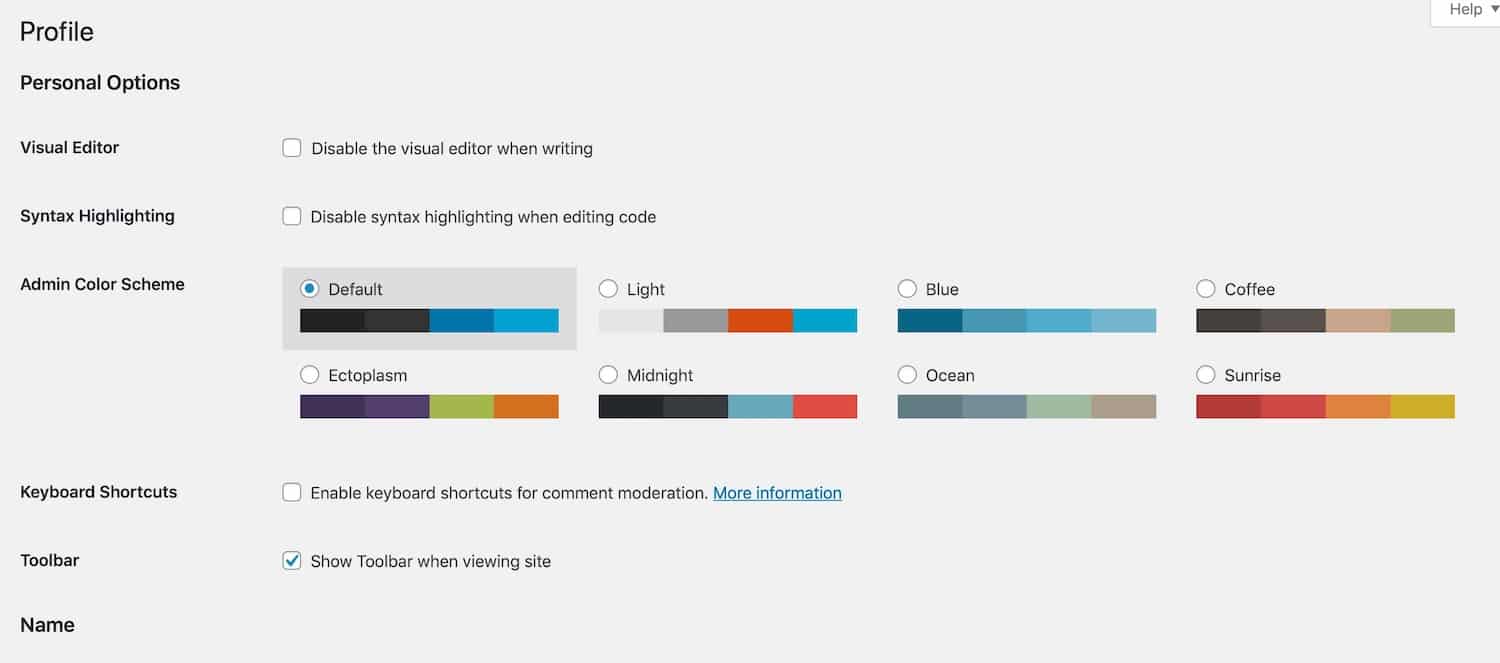
In WordPress, go to Users > Your Profile to access your profile screen.
Scroll down to the Account Management section at the bottom of the screen.
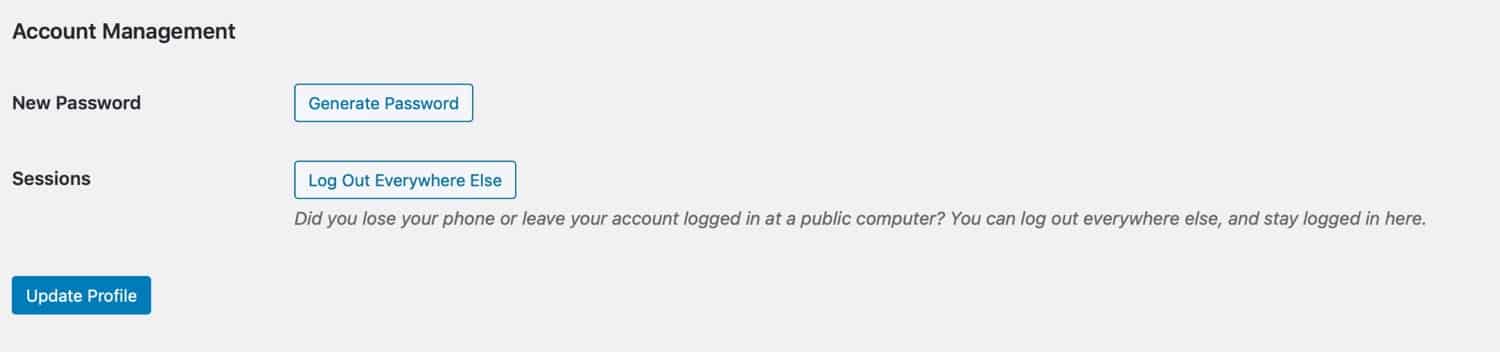
Click the Generate Password button. A new password will be generated for you and displayed for you to copy. If you want to edit it, you can do so.
Click the Update Profile button and your new password will be saved. You’ll need to log in again with the new password – so make a note of it.
If you think you might be logged into your WordPress site on multiple devices or browsers, or you suspect that someone else might have used your credentials to access your site, click the Log Out Everywhere Else button too.
Using the Lost Password Link to Reset Your Password
If you have access to the email account you used to set up your WordPress account, but you don’t know your password, you can use the forgot password link to quickly reset your password.
Browse to your WordPress login page, typically this is located at /wp-admin, such as: https://domain.com/wp-admin. Then click on the Lost your password? link at the bottom.

On the next screen, enter your username or the email address you used for your WordPress account. Click on Get New Password and you will receive a link to create a new password via email.
Check your inbox and click the link in the email you receive. You’ll be taken to a screen where you can reset your password.

Finally, log into your site using the new password with your username or email address. Done.
Using the WordPress Admin to Change (or Reset) Another User’s Password
If you’re the site administrator, another user might ask you to reset their password.
Or you might choose to reset their password because it’s not secure enough or it’s been shared too widely. In both cases, you can reset the user’s WordPress password via the admin screens.
In the WordPress admin, go to Users. Find the user whose password you want to rest and click the Edit link beneath their name.

This will open up the editing screen for that user.

Scroll down to the Account Management section and click the Generate Password button.

A new password will be generated. You can edit it you want to: make sure that if you do, the password is strong.
Click the Update User button. The user will be sent an email with details of their new password.
How to Change WordPress Password via WP-CLI
If you have access to the site, another option for resetting or changing a password is via WP-CLI. You can change any user’s password this way.
Start by accessing your site via WP-CLI as you normally would.
To change a password, navigate to the root directory – the folder where you installed WordPress. Get a list of users by typing this command:
wp user listFind the user whose password you want to reset and make a note of their user ID. If it’s the site admin, the user ID will be 1, but you can use this method to change other user passwords too.
Type the following command:
wp user update 1 --user_pass=passwordReplace “password” in the example above with the new password for the user and make sure you use a much stronger password than that.
If the user ID you want to work with isn’t 1, replace the 1 in the example with their user ID.
How to Change (or Reset) WordPress Passwords from phpMyAdmin
Another way to change WordPress admin passwords is directly in the database via phpMyAdmin. If you don’t have access to your email or your WordPress site isn’t sending emails correctly, this might be the only solution you have.
You might also have to use this method if you are on a local development install. If you are a Kinsta customer you can always reach out to support for assistance if you don’t feel comfortable doing this.
You’ll first want to login to phpMyAdmin. If your web host is using cPanel, the link to phpMyAdmin is typically found under the database section.
If you are a Kinsta customer you can access phpMyAdmin directly from your MyKinsta dashboard. You can find the login credentials there as well.

On the left-hand side, click on your database. Then scroll down and click on the wp_users table. wp_users is the standard table used on fresh WordPress installations.
However, some sites might have a prefix added for security purposes. In this case, it might be named slightly different, such as wp56_users.

On the row next to your admin username, click on Edit. If you have multiple users on your WordPress site, double-check to ensure you are editing the right one.
In the column user_pass, you can enter a new value for your password. Ensure that you select MD5 from the function column. Then click on Go at the bottom.
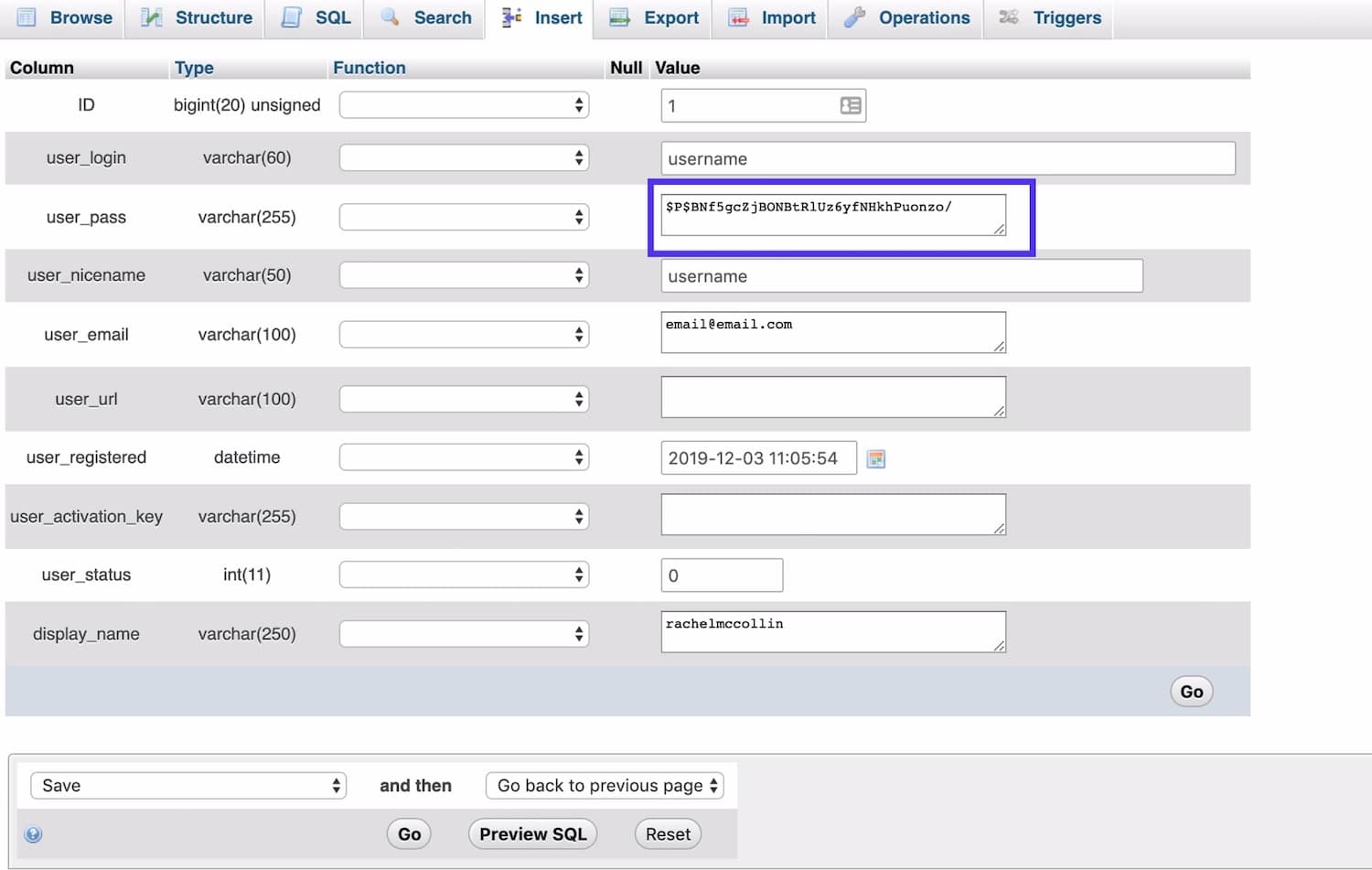
And that’s it! You have now changed your WordPress admin password.
You can return to your WordPress login screen and use your updated credentials to access your site.
Changing (or Resetting) WordPress Passwords from phpMyAdmin in MyKinsta
If you’re with Kinsta, you can access phpMyAdmin via the MyKinsta dashboard and reset your password that way.

Once you’re in phpMyAdmin, reset your password using the instructions above for phpMyAdmin.
How to Reset WordPress Password using SQL
Another way to reset your password via phpMyAdmin is by using a SQL statement.
Simply run the following from the SQL tab. Make sure to update the new_password and admin_username values with your own.
UPDATE `wp_users` SET `user_pass` = MD5( ‘new_password’ ) WHERE `wp_users`.`user_login` = “admin_username”;
You can access SQL via the SQL tab in phpMyAdmin.

How to Change WordPress Passwords via FTP
Another way to change or reset your passwords is through FTP.
Start by accessing your site using an FTP client or a code editor with FTP included.
Navigate to the root directory of your site:

Now navigate to wp-content/themes and find the folder with the currently active theme in it. In that folder, find the functions.php file. Open it or download it so you can edit it.
It’s always a good idea to make a duplicate of this file first, just in case of any problems.

Now, in the first line, right after the opening <?php, add this line of code:
wp_set_password( 'password', 1 );The first parameter is the new password: I suggest you use a more secure one than ‘password’. And the second parameter is the User ID. User ID 1 will be the administrator.
Now, save the modified file or upload it to your site in the same location, overwriting the old version of the file.
Your admin password will now be the password you used in the functions file. Log in to your site and check you can access it.
Once you’ve logged in, go back to your functions.php file and remove that line of code.
It’s very important you do this as leaving it in your file will make your site vulnerable and will mean that your password is reset again and again every time a page is loaded.
How to Reset WordPress Passwords from cPanel
At Kinsta we don’t use cPanel. Instead, we use MyKinsta to reset your password (as we saw before). But if you’re with a provider that does use cPanel, this is another way to do it.
If you installed WordPress using an auto-installer in cPanel and you don’t have access to the email account, you can reset the WordPress administrator password in cPanel by accessing the installation you created there. You can’t reset any other user passwords this way.
Start by opening cPanel and scrolling down to the WordPress Manager. Depending on your hosting provider, you may need to look in the Auto-installer or Softaculous section instead.

This will take you to the WordPress auto-installer screen. Scroll down to find the installation for which you want to change the password.
Next to the installation whose password you want to change, click the edit icon (a pencil). This will take you to the installation editing screen.

Scroll down to the Admin Account section and find the Admin Password field. Type in a new password – making sure it’s secure and that you can remember it.
Now go back to your site and log in using your new password.
How to Reset WordPress Passwords Using the Emergency Password Reset Script
If all else fails, a last-ditch resort is to use the WordPress emergency password reset script.
To use this, you’ll need to know the administrator’s username. It will update the password for the admin account and send an email to the administrator’s email address.
You don’t actually need access to email, but you will need to know the username. The new password will be sent to your email address, so if your email has been compromised, don’t use this method.
In most cases, if you have the username and access to email, you can use the lost password link in the login screen.
But if wp-admin is not working at all and need to reset your password, this is an option.
Start by creating a file called emergency.php in your root directory: the folder where WordPress is installed. Copy the Emergency Password Script and paste it into your file.
In your browser, open http://example.com/emergency.php, where example.com is your site’s address. (make sure to use emergency.php, not just emergency.)

In the WordPress Administrator field, enter the username of the administrator account. In the Password field, enter your new password. Click the Update Options button.
A message is displayed noting the changed password. Check your email as you’ll get an email with the updated information.
Delete emergency.php from your server when you’re finished. Don’t leave it on your server, as someone else could use it to change your password.
You’ll now be able to use your site with a new password.
How to Troubleshoot Common Issues with Password Changes and Resets
Sometimes changing or resetting your password doesn’t go as smoothly as you hoped. Here is a list of common problems or errors and what to do if they occur.
You Changed Your Password in the WordPress Admin and the New Password Isn’t Recognized
Chances are you’ve typed in the new password wrong or forgotten it. Try typing it in again.
Alternatively, your browser might have saved an old password in a cookie and be populating the password field with that. Delete whatever’s there and type in the new password.
If all else fails, use the Lost your password? link in the login screen to reset your password.
You’re Trying to Reset Your Password but WordPress Doesn’t Recognize Your Email or Username
If you use the Forgot login link to reset your password, you’ll need to type in your email address or username. Check that you typed these incorrectly.
If you can’t remember your email address or username, you’ll need to use one of the methods above for situations when you don’t have access to email.
You Reset Your Password and Haven’t Received an Email with Details
Try checking your spam folder. The email is automated and may have been sent there. If you’re using Gmail, try the Updates tab.
You might be using the wrong email account. Could you have used a different email address for your WordPress account than you normally use?
If all else fails, you’ll have to use one fo the methods for when you don’t have access to email.
You Used FTP to Change the Password and Your Site Isn’t Working
Using FTP involves making an edit to the theme functions file. If you added this in the wrong place or you typed it in wrong, it could interfere with your theme.
Go back to the functions file and check you followed the instructions correctly. If it still doesn’t work, reinstate the backup you took of the file before editing it. And try another method for resetting your password.
If you didn’t make a backup, you can find your theme in the WordPress theme directory or via the theme vendor you bought it from, and re-upload it to your site with the correct file.
You Used phpMyAdmin to Reset the Password and Now the Site is Broken
Using phpMyAdmin to reset your password involves directly editing the database.
If after doing this your site breaks, or you can’t access the admin screens still, it may be that you did something wrong.
Go back to the instructions for changing the password via phpMyAdmin and check that what you did reflects the instructions. If you did, but you still can’t access your site, try resetting the password another way.
If your site isn’t working correctly, you might have accidentally edited another field. You’ll need to restore your site from a backup you took before editing the database, and then try resetting the password using another method.
If you didn’t take a backup, you’ll need to talk to your hosting provider and ask if they can help.
I Changed the Password for Another User and They Haven’t Received an Email
When the site administrator changes another user’s password, WordPress will send an email to the address used for that account.
If the user hasn’t received an email ask them to:
- check their spam folder (or Updates in Gmail)
- check that the email account they’re using is the same one that’s registered for that WordPress account – you can find this in the user profile screen.
If they still can’t access the email, run through the password generation again and copy the password before clicking the Update User button. You can then provide the user with the password. They should change it themselves the first time they log in so they know it’s private.
Additional Password Security Tips
When you change or reset your WordPress passwords, it’s important to use a secure password. Secure passwords will:
- Be long (10 characters or more).
- Include a mix of upper and lower case letters.
- Include numbers.
- Include special characters such as punctuation.
When you change your password in the WordPress admin screens, you’ll be told how secure it is. If it isn’t strong, (as in the example below) try adding more characters to it, and different types of characters.

The example below is more secure and would still be easy to remember.
Sometimes using a phrase works better than trying to add lots of extra characters to a word. Try using the opening line from your favorite book or a line from a movie.

Alternatively, get WordPress to generate the password for you. You can use a password manager like LastPass to store all your passwords so you don’t need to remember them.
If you want to test how strong your password really is, try putting it into the password checker at How Secure Is My Password? and you’ll find out how long it would take a bot to crack it.

Bookmark this post for the next time you need to reset your WordPress password ASAP (no panicking necessary 😇 )Click to Tweet
Summary
If you need to change or you’ve lost your WordPress password, you don’t need to panic. Changing or resetting your passwords in WordPress can be done very quickly.
If the easier ways don’t work for you, there are a variety of methods you can try, depending on whether or not you have access to the email address associated with your WordPress account.
Work through the methods detailed above and you’ll have a new password and access to WordPress in no time.
Get all your applications, databases and WordPress sites online and under one roof. Our feature-packed, high-performance cloud platform includes:
- Easy setup and management in the MyKinsta dashboard
- 24/7 expert support
- The best Google Cloud Platform hardware and network, powered by Kubernetes for maximum scalability
- An enterprise-level Cloudflare integration for speed and security
- Global audience reach with up to 35 data centers and 275 PoPs worldwide
Test it yourself with $20 off your first month of Application Hosting or Database Hosting. Explore our plans or talk to sales to find your best fit.
If you need to change your WordPress password, you might be panicking. You’ve lost access to your site and you don’t know how to get in again.
Help!
Typically this occurs when someone simply forgets their WordPress password, they don’t have access to their email for a standard password reset, or their WordPress site isn’t sending emails correctly.
In this post, we’ll walk you through a few quick and easy steps on how to change WordPress passwords (or reset them) for all the different types of scenarios you might encounter.
Prefer to watch the video version?
Let’s start by looking at the difference between changing your password and resetting it, so you know which one it is you need to do.
Changing Your WordPress Password vs Resetting It
Changing your password and resetting your password in WordPress result in similar outcomes.
Changing your password is something you do yourself. If you have access to your website and your profile settings, you should be able to change your WordPress password easily. In other words, you change your password when you know your current password.
Resetting your password is something you’ll need to get the system to do for you, or maybe ask an administrator if you aren’t one. For this post, I’m assuming that you are the site admin and you have access to resetting passwords for other users – which is something I’ll show you how to do later in the post.
The main thing about resetting a password is that you do it when you don’t know the existing password.
Scenarios When You Need to Change or Reset Your WordPress Password
There are a number of methods you can use to change or reset a password in WordPress, and many of them apply in more than one scenario.
So let’s take a look at those you might want or need to change your password, and identify the methods you can use for each.
1. Changing WordPress Password with Account Access
So you know your existing password, but you want to change it. Maybe you’ve been given a new WordPress account by an administrator and the password isn’t secure enough or you won’t be able to remember it. Maybe you want to change your WordPress password because someone else has accessed it.
Assuming you have access to your WordPress site, and you know the existing password, you have two options for doing this:
- Use the My Profile screen in the WordPress admin to create a new password.
- Access your site via WP-CLI and use a command to change the password.
I’ll show you how to do each of these later in this post.
2. Changing or Resetting WordPress Password with Email Access
In the next scenario, you don’t know the existing password but you do have access to the email account you used for your WordPress user account. You’ll have to reset the password as you don’t know the old one, but it should be quick and easy.
Here are the options available to you:
- Use the lost password link in the WordPress login screen.
- Reset the password in cPanel, if you used an auto-installer to install WordPress.
- Reset the password in phpMyAdmin. If you’re with Kinsta, reset the password in phpMyAdmin via the MyKinsta dashboard.
- Use FTP to reset the password.
- Use the Emergency Password Reset Script.
Skip ahead to the instructions for using each of these methods.
3. Changing or Resetting WordPress Password Without Email Access
Now let’s imagine you don’t have access to the email address associated with the account. Here are the methods you could use:
- Reset the password in cPanel.
- Reset the password in phpMyAdmin. If you’re with Kinsta, you can easily reset the password in phpMyAdmin through MyKinsta.
- Use FTP to reset the password.
Again, skip ahead to the instructions for using each of these methods.
4. Resetting Another User’s WordPress Password as the Site Admin
This scenario is slightly different, as it’s not your own password you’re resetting but someone else’s. In this situation you won’t have access to the other user’s old password, so you’ll need to do a reset.
Here are the available options:
- Use the WordPress Users screens to access the user and reset their password.
- Reset the password in phpMyAdmin.
Now let’s look at each of the methods in turn.
How to Change or Reset Passwords in WordPress
If all you need to do is change your own WordPress password and you have the old one, you can do this in the admin. You can also reset your password in the admin if you have access to email.
And finally, as a site admin you can reset another user’s password.
Changing Your WordPress Password in the Profile Screen
If you have access to your site and just want to change your WordPress password, you can do it in the Profile screen.
In WordPress, go to Users > Your Profile to access your profile screen.
Scroll down to the Account Management section at the bottom of the screen.
Click the Generate Password button. A new password will be generated for you and displayed for you to copy. If you want to edit it, you can do so.
Click the Update Profile button and your new password will be saved. You’ll need to log in again with the new password – so make a note of it.
If you think you might be logged into your WordPress site on multiple devices or browsers, or you suspect that someone else might have used your credentials to access your site, click the Log Out Everywhere Else button too.
Using the Lost Password Link to Reset Your Password
If you have access to the email account you used to set up your WordPress account, but you don’t know your password, you can use the forgot password link to quickly reset your password.
Browse to your WordPress login page, typically this is located at /wp-admin, such as: https://domain.com/wp-admin. Then click on the Lost your password? link at the bottom.
On the next screen, enter your username or the email address you used for your WordPress account. Click on Get New Password and you will receive a link to create a new password via email.
Check your inbox and click the link in the email you receive. You’ll be taken to a screen where you can reset your password.
Finally, log into your site using the new password with your username or email address. Done.
Using the WordPress Admin to Change (or Reset) Another User’s Password
If you’re the site administrator, another user might ask you to reset their password.
Or you might choose to reset their password because it’s not secure enough or it’s been shared too widely. In both cases, you can reset the user’s WordPress password via the admin screens.
In the WordPress admin, go to Users. Find the user whose password you want to rest and click the Edit link beneath their name.
This will open up the editing screen for that user.
Scroll down to the Account Management section and click the Generate Password button.
A new password will be generated. You can edit it you want to: make sure that if you do, the password is strong.
Click the Update User button. The user will be sent an email with details of their new password.
How to Change WordPress Password via WP-CLI
If you have access to the site, another option for resetting or changing a password is via WP-CLI. You can change any user’s password this way.
Start by accessing your site via WP-CLI as you normally would.
To change a password, navigate to the root directory – the folder where you installed WordPress. Get a list of users by typing this command:
wp user listFind the user whose password you want to reset and make a note of their user ID. If it’s the site admin, the user ID will be 1, but you can use this method to change other user passwords too.
Type the following command:
wp user update 1 --user_pass=passwordReplace “password” in the example above with the new password for the user and make sure you use a much stronger password than that.
If the user ID you want to work with isn’t 1, replace the 1 in the example with their user ID.
How to Change (or Reset) WordPress Passwords from phpMyAdmin
Another way to change WordPress admin passwords is directly in the database via phpMyAdmin. If you don’t have access to your email or your WordPress site isn’t sending emails correctly, this might be the only solution you have.
You might also have to use this method if you are on a local development install. If you are a Kinsta customer you can always reach out to support for assistance if you don’t feel comfortable doing this.
You’ll first want to login to phpMyAdmin. If your web host is using cPanel, the link to phpMyAdmin is typically found under the database section.
If you are a Kinsta customer you can access phpMyAdmin directly from your MyKinsta dashboard. You can find the login credentials there as well.
On the left-hand side, click on your database. Then scroll down and click on the wp_users table. wp_users is the standard table used on fresh WordPress installations.
However, some sites might have a prefix added for security purposes. In this case, it might be named slightly different, such as wp56_users.
On the row next to your admin username, click on Edit. If you have multiple users on your WordPress site, double-check to ensure you are editing the right one.
In the column user_pass, you can enter a new value for your password. Ensure that you select MD5 from the function column. Then click on Go at the bottom.
And that’s it! You have now changed your WordPress admin password.
You can return to your WordPress login screen and use your updated credentials to access your site.
Changing (or Resetting) WordPress Passwords from phpMyAdmin in MyKinsta
If you’re with Kinsta, you can access phpMyAdmin via the MyKinsta dashboard and reset your password that way.
Once you’re in phpMyAdmin, reset your password using the instructions above for phpMyAdmin.
How to Reset WordPress Password using SQL
Another way to reset your password via phpMyAdmin is by using a SQL statement.
Simply run the following from the SQL tab. Make sure to update the new_password and admin_username values with your own.
UPDATE `wp_users` SET `user_pass` = MD5( ‘new_password’ ) WHERE `wp_users`.`user_login` = “admin_username”;
You can access SQL via the SQL tab in phpMyAdmin.
How to Change WordPress Passwords via FTP
Another way to change or reset your passwords is through FTP.
Start by accessing your site using an FTP client or a code editor with FTP included.
Navigate to the root directory of your site:
Now navigate to wp-content/themes and find the folder with the currently active theme in it. In that folder, find the functions.php file. Open it or download it so you can edit it.
It’s always a good idea to make a duplicate of this file first, just in case of any problems.
Now, in the first line, right after the opening <?php, add this line of code:
wp_set_password( 'password', 1 );The first parameter is the new password: I suggest you use a more secure one than ‘password’. And the second parameter is the User ID. User ID 1 will be the administrator.
Now, save the modified file or upload it to your site in the same location, overwriting the old version of the file.
Your admin password will now be the password you used in the functions file. Log in to your site and check you can access it.
Once you’ve logged in, go back to your functions.php file and remove that line of code.
It’s very important you do this as leaving it in your file will make your site vulnerable and will mean that your password is reset again and again every time a page is loaded.
How to Reset WordPress Passwords from cPanel
At Kinsta we don’t use cPanel. Instead, we use MyKinsta to reset your password (as we saw before). But if you’re with a provider that does use cPanel, this is another way to do it.
If you installed WordPress using an auto-installer in cPanel and you don’t have access to the email account, you can reset the WordPress administrator password in cPanel by accessing the installation you created there. You can’t reset any other user passwords this way.
Start by opening cPanel and scrolling down to the WordPress Manager. Depending on your hosting provider, you may need to look in the Auto-installer or Softaculous section instead.
This will take you to the WordPress auto-installer screen. Scroll down to find the installation for which you want to change the password.
Next to the installation whose password you want to change, click the edit icon (a pencil). This will take you to the installation editing screen.
Scroll down to the Admin Account section and find the Admin Password field. Type in a new password – making sure it’s secure and that you can remember it.
Now go back to your site and log in using your new password.
How to Reset WordPress Passwords Using the Emergency Password Reset Script
If all else fails, a last-ditch resort is to use the WordPress emergency password reset script.
To use this, you’ll need to know the administrator’s username. It will update the password for the admin account and send an email to the administrator’s email address.
You don’t actually need access to email, but you will need to know the username. The new password will be sent to your email address, so if your email has been compromised, don’t use this method.
In most cases, if you have the username and access to email, you can use the lost password link in the login screen.
But if wp-admin is not working at all and need to reset your password, this is an option.
Start by creating a file called emergency.php in your root directory: the folder where WordPress is installed. Copy the Emergency Password Script and paste it into your file.
In your browser, open http://example.com/emergency.php, where example.com is your site’s address. (make sure to use emergency.php, not just emergency.)
In the WordPress Administrator field, enter the username of the administrator account. In the Password field, enter your new password. Click the Update Options button.
A message is displayed noting the changed password. Check your email as you’ll get an email with the updated information.
Delete emergency.php from your server when you’re finished. Don’t leave it on your server, as someone else could use it to change your password.
You’ll now be able to use your site with a new password.
How to Troubleshoot Common Issues with Password Changes and Resets
Sometimes changing or resetting your password doesn’t go as smoothly as you hoped. Here is a list of common problems or errors and what to do if they occur.
You Changed Your Password in the WordPress Admin and the New Password Isn’t Recognized
Chances are you’ve typed in the new password wrong or forgotten it. Try typing it in again.
Alternatively, your browser might have saved an old password in a cookie and be populating the password field with that. Delete whatever’s there and type in the new password.
If all else fails, use the Lost your password? link in the login screen to reset your password.
You’re Trying to Reset Your Password but WordPress Doesn’t Recognize Your Email or Username
If you use the Forgot login link to reset your password, you’ll need to type in your email address or username. Check that you typed these incorrectly.
If you can’t remember your email address or username, you’ll need to use one of the methods above for situations when you don’t have access to email.
You Reset Your Password and Haven’t Received an Email with Details
Try checking your spam folder. The email is automated and may have been sent there. If you’re using Gmail, try the Updates tab.
You might be using the wrong email account. Could you have used a different email address for your WordPress account than you normally use?
If all else fails, you’ll have to use one fo the methods for when you don’t have access to email.
You Used FTP to Change the Password and Your Site Isn’t Working
Using FTP involves making an edit to the theme functions file. If you added this in the wrong place or you typed it in wrong, it could interfere with your theme.
Go back to the functions file and check you followed the instructions correctly. If it still doesn’t work, reinstate the backup you took of the file before editing it. And try another method for resetting your password.
If you didn’t make a backup, you can find your theme in the WordPress theme directory or via the theme vendor you bought it from, and re-upload it to your site with the correct file.
You Used phpMyAdmin to Reset the Password and Now the Site is Broken
Using phpMyAdmin to reset your password involves directly editing the database.
If after doing this your site breaks, or you can’t access the admin screens still, it may be that you did something wrong.
Go back to the instructions for changing the password via phpMyAdmin and check that what you did reflects the instructions. If you did, but you still can’t access your site, try resetting the password another way.
If your site isn’t working correctly, you might have accidentally edited another field. You’ll need to restore your site from a backup you took before editing the database, and then try resetting the password using another method.
If you didn’t take a backup, you’ll need to talk to your hosting provider and ask if they can help.
I Changed the Password for Another User and They Haven’t Received an Email
When the site administrator changes another user’s password, WordPress will send an email to the address used for that account.
If the user hasn’t received an email ask them to:
- check their spam folder (or Updates in Gmail)
- check that the email account they’re using is the same one that’s registered for that WordPress account – you can find this in the user profile screen.
If they still can’t access the email, run through the password generation again and copy the password before clicking the Update User button. You can then provide the user with the password. They should change it themselves the first time they log in so they know it’s private.
Additional Password Security Tips
When you change or reset your WordPress passwords, it’s important to use a secure password. Secure passwords will:
- Be long (10 characters or more).
- Include a mix of upper and lower case letters.
- Include numbers.
- Include special characters such as punctuation.
When you change your password in the WordPress admin screens, you’ll be told how secure it is. If it isn’t strong, (as in the example below) try adding more characters to it, and different types of characters.
The example below is more secure and would still be easy to remember.
Sometimes using a phrase works better than trying to add lots of extra characters to a word. Try using the opening line from your favorite book or a line from a movie.
Alternatively, get WordPress to generate the password for you. You can use a password manager like LastPass to store all your passwords so you don’t need to remember them.
If you want to test how strong your password really is, try putting it into the password checker at How Secure Is My Password? and you’ll find out how long it would take a bot to crack it.
Bookmark this post for the next time you need to reset your WordPress password ASAP (no panicking necessary 😇 )Click to Tweet
Summary
If you need to change or you’ve lost your WordPress password, you don’t need to panic. Changing or resetting your passwords in WordPress can be done very quickly.
If the easier ways don’t work for you, there are a variety of methods you can try, depending on whether or not you have access to the email address associated with your WordPress account.
Work through the methods detailed above and you’ll have a new password and access to WordPress in no time.
Get all your applications, databases and WordPress sites online and under one roof. Our feature-packed, high-performance cloud platform includes:
- Easy setup and management in the MyKinsta dashboard
- 24/7 expert support
- The best Google Cloud Platform hardware and network, powered by Kubernetes for maximum scalability
- An enterprise-level Cloudflare integration for speed and security
- Global audience reach with up to 35 data centers and 275 PoPs worldwide
Test it yourself with $20 off your first month of Application Hosting or Database Hosting. Explore our plans or talk to sales to find your best fit.
Существует четыре способа, как можно задать пароль пользователя на сайте с WordPress. Один способ традиционный — задать пароль из панели администратора WordPress. Но если вы не имеете доступа к панели администрирования, то не отчаивайтесь, потому что существует ещё три способа, как можно задать пароль без доступа к сайту.
Изменить пароль через панель WordPress
Если у Вас есть доступ к панели, то зайдите в неё и кликните на пункт «Пользователи» в боковом меню. Затем кликните на пункт «Ваш профиль»:
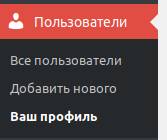
Прокрутите открывшеюся страницу редактирования профиля в самый низ, до блока «Управление учётной записью». В этом блоке нажмите на кнопку «Создать пароль»:
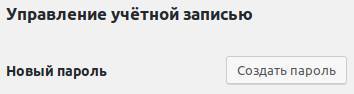
Появится поле для ввода нового пароля:
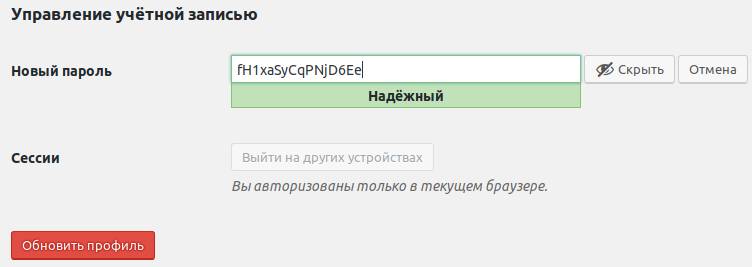
Задайте новый пароль и внизу формы нажмите на кнопку «Обновить профиль», чтобы изменение пароля вступило в силу.
Изменить пароль через базу данных WordPress
В базе данных, где хранятся таблицы WordPress, существует таблица «wp_users«, одним из полей которого является «user_pass«. Чтобы изменить пароль определённому пользователю, необходимо выполнить SQL команду:
UPDATE wp_users SET user_pass = MD5('новый_пароль') WHERE user_login = 'логин_пользователя';Тогда пользователю с логином «логин_пользователя» будет установлен пароль «новый_пароль» (измените эти значения в запросе на логин к учётной записи, к которой хотите изменить пароль, и пароль, который хотите установить).
Если Вы не знакомы с SQL запросами, то рекомендуем посетить раздел нашего сайта, где собраны «учебные статьи о SQL запросах» к базе данных.
Изменить пароль в WordPress через PhpMyAdmin
Существует панель управления базами данных, которая называется «PhpMyAdmin«. В эту панель можно войти через браузер. Для авторизации в базе необходимо знать логин и пароль пользователя, который можно получить у техподдержки хостинга.
В «PhpMyAdmin» найдите таблицы сайта на WordPress, а именно таблицу «wp_users«. В ней содержатся данные пользователей. Для изменения информации пользователя кликните на нужную строку два раза. Появится форма редактирования данных выбранного пользователя:
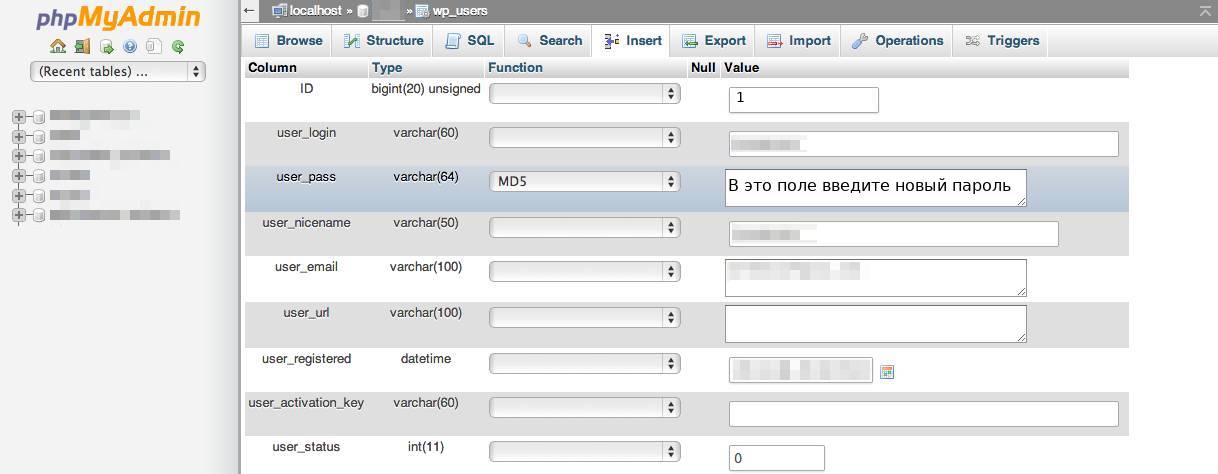
В поле «user_pass» введите новый пароль и сохраните изменения. Если в столбце «Function» значение не стоит, то необходимо поставить значение «MD5«. Теперь можно попробовать войти на сайт с этим паролем.
Изменить пароль WordPress через PHP скрипт
Если есть доступ к серверу с сайтом (к примеру, через FTP) и нужно задать пароль для пользователя с известным логином, то можно воспользоваться небольшим PHP скриптом. Для этого найдите в папке с темой вашего сайта файл functions.php, в самое начало:
<?php
   add_action('init', function(){
         $user = get_user_by('login', 'логин_пользователя');
         wp_set_password('новый_пароль', $user->ID);
      }
   );
?>
Этот код установит пользователю с логином «логин_пользователя» пароль «новый_пароль» (измените эти значения на логин к учётной записи, к которой хотите изменить пароль, и пароль, который хотите установить).
Рекомендуем ознакомиться со статьями, описывающими инструменты и процесс редактирования файлов на сервере сайта: «Средство разработки: Notepad++» или «Средство разработки: Atom»
Теперь загрузите любую публичную страницу сайта. К примеру, титульную. Тогда код выполнится и будет изменён пароль пользователя. После чего удалите этот код из файла functions.php. Если не удалить этот код, то при загрузке каждой страницы вашего сайта будет происходить перезапись пароля пользователя, что создаст нагрузку на базу данных и замедлит сайт.
Если не удаётся вспомнить логин администратора сайта, то можно изменить пароль по ID пользователя. К примеру, при установке WordPress создаётся пользователь-администратор, у которого ID равен 1. Поэтому под из предыдущего примера можно переписать так:
<?php
   add_action('init', function(){
         wp_set_password('новый_пароль', 1);
      }
   );
?>
Этот код отличается от предыдущего примера таем, что вместо «$user->ID» стоит единица «1». Поэтому будет изменён пароль для пользователя с ID = 1. Вместо «новый_пароль» из примера необходимо поставить ваш пароль, который хотите задать.
Теперь загрузите любую публичную страницу сайта. К примеру, титульную. Код выполнится и будет изменён пароль пользователя с ID = 1. Не забудьте удалить этот код, после того как новый пароль установится и сможете получить доступ к базе.
-
1.
Почему пароль от сайта WordPress – это важно -
2.
Как изменить пароль WordPress из панели администратора -
3.
Как зайти в админку WordPress, если забыл пароль -
4.
Как восстановить пароль WordPress через phpMyAdmin -
5.
Как восстановить пароль WordPress через хостинг
Как восстановить пароль в WordPress, если вы его забыли? Иногда это требуется из соображений безопасности.
На страницу входа в админ панель всегда есть кнопка “Забыли пароль?”, которая позволяет сбросить пароль. Но иногда письмо просто не приходит на почту из-за того, что ваша хостинговая компания не настроили отправку писем для WordPress правильно.
В этом руководстве для начинающих мы рассмотрим 4 способа изменить пароль WordPress, чтобы рассказать о всех возможных сценариях.
Мы не можем не напомнить, что качественный пароль – это главный фактор защиты от взлома и сохранности ваших данных.
Часто пользователи используют слабые пароли, потому что их легко запомнить. Грубейшей ошибкой является и то, что они используют этот пароль на нескольких сайтах. Не делайте этого. Используйте программы менеджеры паролей. В Google Chrome такой менеджер встроен и может проверить, была ли утечка паролей или нет.
Иногда легче всего поделиться своим паролем WordPress с членами команды или фрилансером. Никогда этого не делайте.
Мы рекомендуем создавать новую учетную запись для каждого нового пользователя с подходящей ролью, чтобы вы всегда могли ограничить её.
Благодаря этому, вы сможете легко удалить учетную запись, когда фрилансер выполнил свою работу или автор больше не входит в вашу команду, без необходимости менять основной пароль.
Соблюдайте данные рекомендации, а сейчас мы рассмотрим способы, как восстановить пароль на сайте WordPress.
Как изменить пароль WordPress из панели администратора
Это самый простой способ изменить пароль WordPress.
Первое, что нужно сделать, это зайди в админ панель WordPress (например по адресу https://example.com/login/).
После того, как вы вошли в админку, перейдите в раздел Пользователи->Ваш профиль.

В профиле WordPress прокрутите вниз до раздела “Управление учётной записью” и найдите кнопку “Создать пароль”.

После нажатия на кнопку, WordPress создаст вам надежный пароль.

Вы можете использовать предложенный надежный пароль или вписать в поле свой собственный.

Вписывая свой пароль, WordPress проверит его на надежность. Если вы впишите слишком слабы пароль, WordPress потребует подтвердить намерение использовать слабый пароль.
После того, как вы вписали пароль, нажмите кнопку “Обновить профиль”, чтобы сохранить новый пароль.

После обновления вы увидите уведомления, что “Профиль обновлен”. Также на почту придет уведомление о обновлении пароля.
Как зайти в админку WordPress, если забыл пароль
Способ, который мы только что рассматривали, позволяется изменить свой пароль только в том случае, если у вас есть доступ к вашей панели управления WordPress.
Что делать, если вы забыли пароль WordPress и не можете войти?
В WordPress есть очень простой способ восстановить утерянный пароль. Зайдите на страницу входа WordPress (https://example.com/wp-login.php) и нажмите “Забыли пароль?”.

WordPress перенесет вас на страницу восстановления пароля WordPress. Введите ваше имя пользователя или Email адрес. Вы получите Email сообщение с инструкциями по сбросу пароля.

Далее вам придет письмо со ссылкой для сброса пароля на электронный адрес, который привязан к вашей учетной записи.
Как восстановить пароль WordPress через phpMyAdmin
Описанные выше методы подходят для новичков, но иногда нет возможности воспользоваться ими, так как у вас нет доступа к электронной почте, привязанной к учетной записи, или письмо отправляемое на Email не приходит, или вы забыли логин и пароль.
Если возникает такая ситуация, то единственным способом сбросить пароль WordPress – восстановить пароль с помощью базы данных (БД), а именно phpMyAdmin.
Первое, что нужно сделать – зайти в phpMyAdmin.
Если вы используете хостинг Beget (мы рекомендуем его), то зайдите в раздел MySQL в панели управления, либо пройдите по ссылке – https://cp.beget.com/mysql. На странице будет список баз данных. Нажмите на иконку phpMyAdmin в правой колонке.

В зависимости от хостинга, панель управления отличается. Если вы не можете попасть phpMyAdmin, обратитесь в службу поддержки хостинга.
После того, как вы попали в phpMyAdmin, нажмите на имя базы данных в боковом меню слева. У Вас откроется список таблиц, которые есть в вашей базе данных WordPress.

Найдите в списке таблицу wp_users и нажмите “Обзор”, как показано на картинке.

Благодаря этому, вы сможете увидеть всех пользователей на вашем сайте WordPress. Нажмите на иконку карандаша, рядом с вашей учетной записью, либо отметьте строку и нажмите “Изменить”.

PhpMyAdmin откроет страницу, где покажет все существующие поля с информацией выбранного пользователя.
Узнать установленный пароль просто так не получится, так как он зашифрован, а вот установить новый – без проблем.
Удалите значение в поле user_pass и замените его новым паролем. В столбце “Функции” (Function в англ версии) выберите MD5 в раскрывающемся списке, как показано на скриншоте и нажмите кнопку “Вперед” в правом нижнем углу. Это сохранит изменения.

Использование хэш-кода
Если не поменять значение в столбце “Функция”, то вам придется использовать хэш-код MD5 в формате 128-bit hash. Получить его можно с помощью генераторов, либо воспользоваться данными хэш-кодами:
Пароль : код
12345 : 827ccb0eea8a706c4c34a16891f84e7b
678910 : 3e0101ecf0d8427cf14f3f6dc20282d
admin : 21232f297a57a5a743894a0e4a801fc3
Это всё, теперь вы сможете успешно попасть в админ-панель сайта.
Как восстановить пароль WordPress через хостинг
Если вы не смогли сбросить пароль WordPress c помощью phpMyAdmin из-за того, что не смогли туда попасть или не разобрались, то восстановить пароль можно с помощью хостинга.
Чтобы изменить пароль с помощью хостинга, нам потребуется изменить файл functions.php в активной теме. Это можно сделать с помощью FTP-клиента, подключившись к хостингу или воспользоваться встроенным файловым менеджером у хостинг провайдера.
Зайдите в папку вашей активной темы и найдите там файл functions.php.
Путь к файлу functions.php
В нашем случае пусть выглядит так: ../wptuts.ru/public_html/wp-content/themes/twentyseventeen/functions.php. Мы используем тему Twenty Seventeen.
Вставьте следующий код код в конец файла functions.php
wp_set_password('password', 1);Теперь при открытии сайта пароль у администратора изменится на password. После входа не забудьте удалить данный код, чтобы пароль не перезаписывался каждый раз.
Мы рассмотрели 4 способа восстановить пароль WordPress с использованием кнопки “Забыли пароль?”, через админ панель, с помощью phpMyAdmin (базы данных) и хостинга, внося правки в файл functions.php. Благодаря этим способам вы в любой случае сможете изменить пароль и получить доступ к сайту. Сохраняйте данную статью в закладках, делитесь ей в социальных сетях и пишите комментарии, помогли ли данные способы лично вам.
Если вы нашли ошибку, пожалуйста, выделите фрагмент текста и нажмите Ctrl+Enter.
Не заходил в этот блог несколько лет и забыл пароль от админки. Так что вот вам несколько способов восстановления утерянного доступа к аккаунту на CMS WordPress.
Способ 1: меняем пароль через форму восстановления пароля
Стандартный вариант смены пароля. Открываем форму авторизации по ссылке http://domen.ru/wp-admin/ (где domen.ru – домен вашего сайта) и кликаем на ссылку Забыли пароль?

Вводим свой логин или E-mail в соответствующее поле и жмем кпопку Получить новый пароль:

Если указанный логин или E-mail существует на сайте — система сообщит, что письмо с паролем отправлено на почту:

Проверяем почту – видим письмо со ссылкой на страничку восстановления пароля:

Переходим по ссылке – видим форму для ввода нового пароля:

Указываем нужный пароль и жмем кнопку Задать пароль. Новый пароль вступил в силу — можно войти в админку:

Способ 2: меняем пароль в базе данных с помощью PHPMyAdmin
Используем этот вариант, если предыдущий не помог (например, по какой-то причине на почту не пришло письмо со ссылкой на страницу смены пароля). Очевидно, что для данного способа необходим доступ к интерфейсу PHPMyAdmin. Обычно в него можно попасть через панель управления хостингом из раздела с базами данных. Находясь в PHPMyAdmin, выбираем нашу базу данных и переходим в таблицу wp_users:

В таблице находим строчку нашего пользователя (в моем случае в таблице всего 1 пользователь) и переходим к редактированию записи, нажав ссылку Изменить:

Нас интересует строчка user_pass:
- В столбце Функция обязательно выбираем MD5
- В столбец Значение вводим новый пароль
- Сохраняем изменения

Пароль изменен — попробуйте авторизоваться.
Способ 3: меняем пароль пользователя с помощью FTP
Если нет доступа к интерфейсу PHPMyAdmin или просто не хочется лезть в базу данных – изменим пароль с помощью PHP функции WordPress wp_set_password. Для этого нам понадобится FTP доступ. Через FTP менеджер подключаемся к своему сайту, заходим в папку активной темы, в моем случае это папка /wp-content/themes/alfavitka/ и открываем для редактирования файл functions.php

Если в папке нет файла functions.php – создаем его.
В самое начало этого файла нужно добавить следующий код:
<?php wp_set_password( 'NewPassword123', 1 ); ?>NewPassword123 = ваш новый пароль
1 = ID вашего пользователя, обычно у администратора ID равен 1

Теперь при каждом открытии сайта пароль администратора будет меняться на вышеуказанный. Нам осталось сделать следующее:
- Зайти на сайт – посла загрузки страницы пароль администратора будет изменен.
- Удалить только что добавленную строчку <?php wp_set_password( ‘NewPassword123’, 1 ); ?> из файла functions.php (т.к. пока мы ее не удалим – не сможем авторизоваться).
- Через административный интерфейс авторизоваться с новым паролем.
- При желании – установить себе новый пароль через раздел «Пользователи» в админ-панели.
Способ 4: через FTP создаем нового пользователя с правами администратора
Этот вариант поможет, если вы не помните ни логин, ни пароль от учетной записи администратора. Просто создадим нового пользователя с правами админа. Для этого в тот же самый файл functions.php в самое начало добавляем этот код:
function wpb_admin_account()
{
    $user = 'user2';
    $pass = 'user2password';
    $email = 'email@domen.com';
    if ( !username_exists( $user )  && !email_exists( $email ) )
    {
        $user_id = wp_create_user( $user, $pass, $email );
        $user = new WP_User( $user_id );
        $user->set_role( 'administrator' );
    }
}
add_action('init','wpb_admin_account');
В коде поменяйте эти значения:
user2 = имя нового пользователя
user2password = пароль нового пользователя
email@domen.com = E-mail нового пользователя
Отлично, теперь:
- Открываем сайт, чтобы скрипт создал нового пользователя.
- Пользователь создан, данный код нам больше не нужен, поэтому удаляем его из functions.php.
- Заходим в админ-панель, используя новые логин и пароль.
Переходим в раздел Пользователи:

Через этот раздел узнаем логин первой учетной записи админа, меняем для нее пароль и удаляем вторую учетную запись, которую мы только что создали с помощью скрипта.